NVIDIA @ Windows#
Warning
TensorFlow with GPU support for WSL2 on Windows
Install NVIDIA Driver only on Windows (Host) not on WSL2 (Guest)!
This documentation is designed to serve as a helpful resource for users navigating the installation, maintenance, and operation of a TensorFlow environment. While it may not cover every aspect comprehensively, its goal is to provide assistance where needed.
Specifically, this documentation aims to address important details concerning the integration of NVIDIA and CUDA drivers with TensorFlow. These are challenges that I have personally encountered and observed others facing, hence their inclusion in this guide.
NVIDIA Installer#

Tip
The NVIDIA installer offers a clean installation option, which can be both beneficial and potentially risky, if manually modifications are made to the driver configuration.
To illustrate, consider the following example: I removed files generated by the NVIDIA Installer and substituted them with symbolic links.
    > cd \Windows\System32\lxss\lib
    > del libcuda.so
    > del libcuda.so.1
    > mklink libcuda.so libcuda.so.1.1
    > mklink libcuda.so.1 libcuda.so.1.1
Verify NVIDIA Driver#
nvidia-smi

No |
||
|---|---|---|
1 |
cmd |
|
2 |
installed |
NIVIA driver version |
3 |
highest possible |
CUDA version |
Danger
CUDA Version: This is not the installed CUDA version, this is the highest possible version compatible with the current NVIDIA driver.
Verify CUDA Toolkit#
nvcc --version
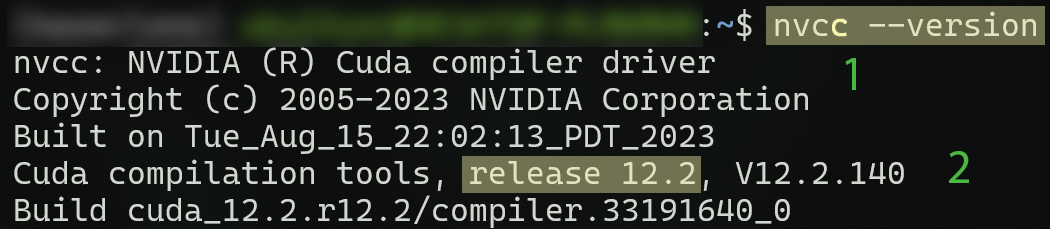
No |
||
|---|---|---|
1 |
cmd |
|
2 |
installed |
CUDA Toolkit version |
Important
CUDA Version: ´nvcc –version´ returns the installed CUDA Toolkit version on your system, that doesn’t mean Tensorflow will use it in your python environment. pip install tensorflow[and-cuda] will install it’s on CUDA and CUDnn drivers. If you check the drivers in Python, you have to separte between system and environment installations.